SMARTPLUS Resident Guide (Updated)
SMARTPLUS Resident Guide (Updated)
SMARTPLUS App Setup
Account Setup
- Select "Login Via SMS"
- Ensure that it says "North America" **(If it does not, click "EMEA" and change to "North America")**
- Enter your phone number and select "Obtain Code"
- You will get an SMS text message with a code
- Enter the code and select "Login"
Using Your E-Key
- To open the door to your building, simply select "Open Door"
- To view the camera at the front door select "Monitor"
Adding a Family Member
- Select "Me"
- Select "Family Members"
- Select "New Family Member"
- Enter First Name, Last Name, and Phone Number
Temp Key Access
Creating a Temp Key
Note: Temp Keys can be used to allow access for expected deliveries, healthcare providers, visitors etc.
- Select "Temp Key"
- Select the "+" icon
- Fill out the above information to your needs
- Share your temp key by your preferred method
Using a Temp Key
- Simply select "Temp Key" on the video entry system screen and hold your QR code in front of the camera
Setting Up Face ID (Only for Compatible Systems)
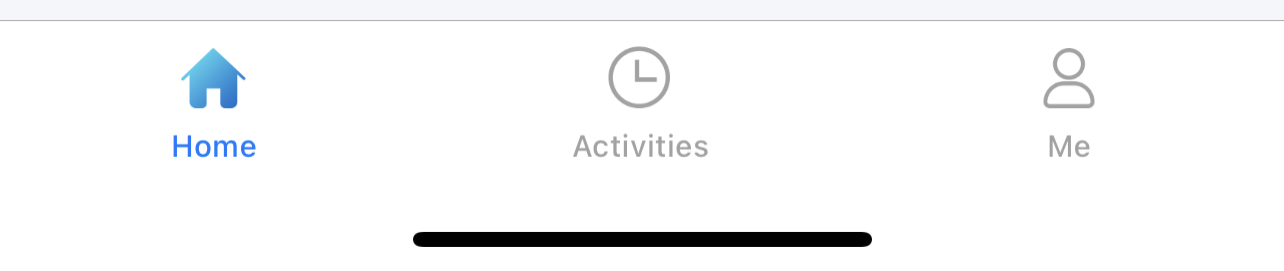
- Select "Me"
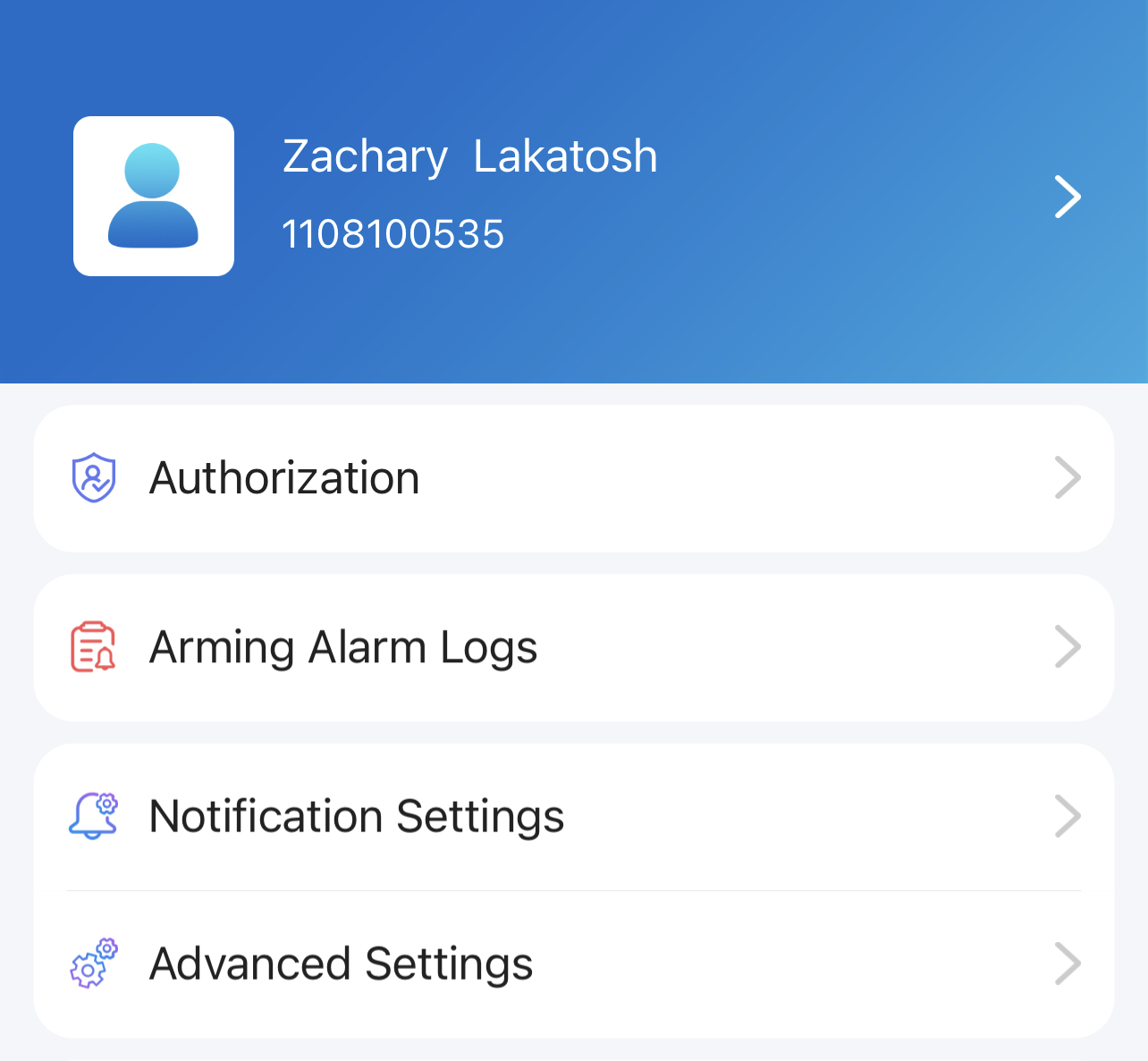
- Select "Authorization"
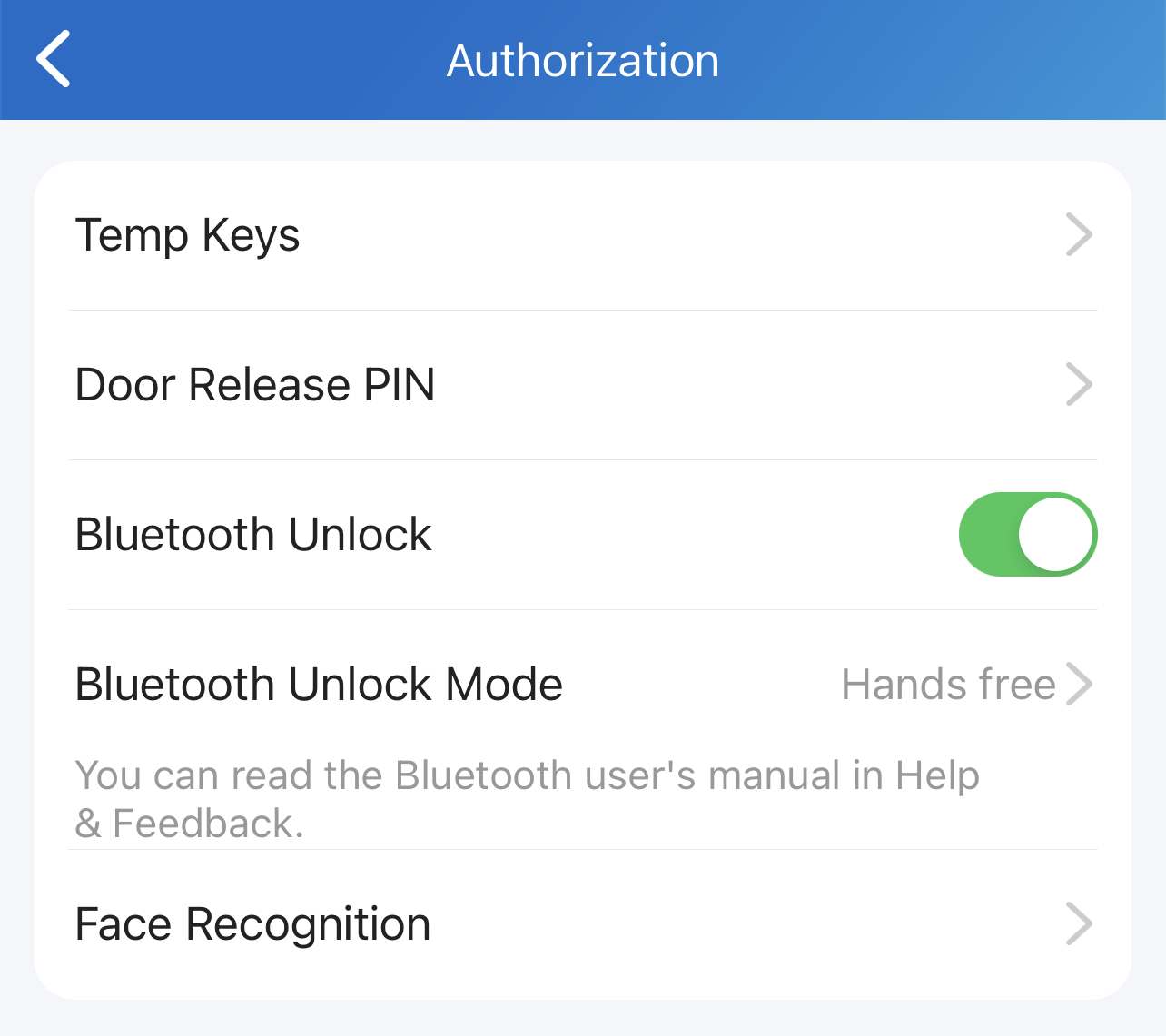
- Select "Face Recognition"
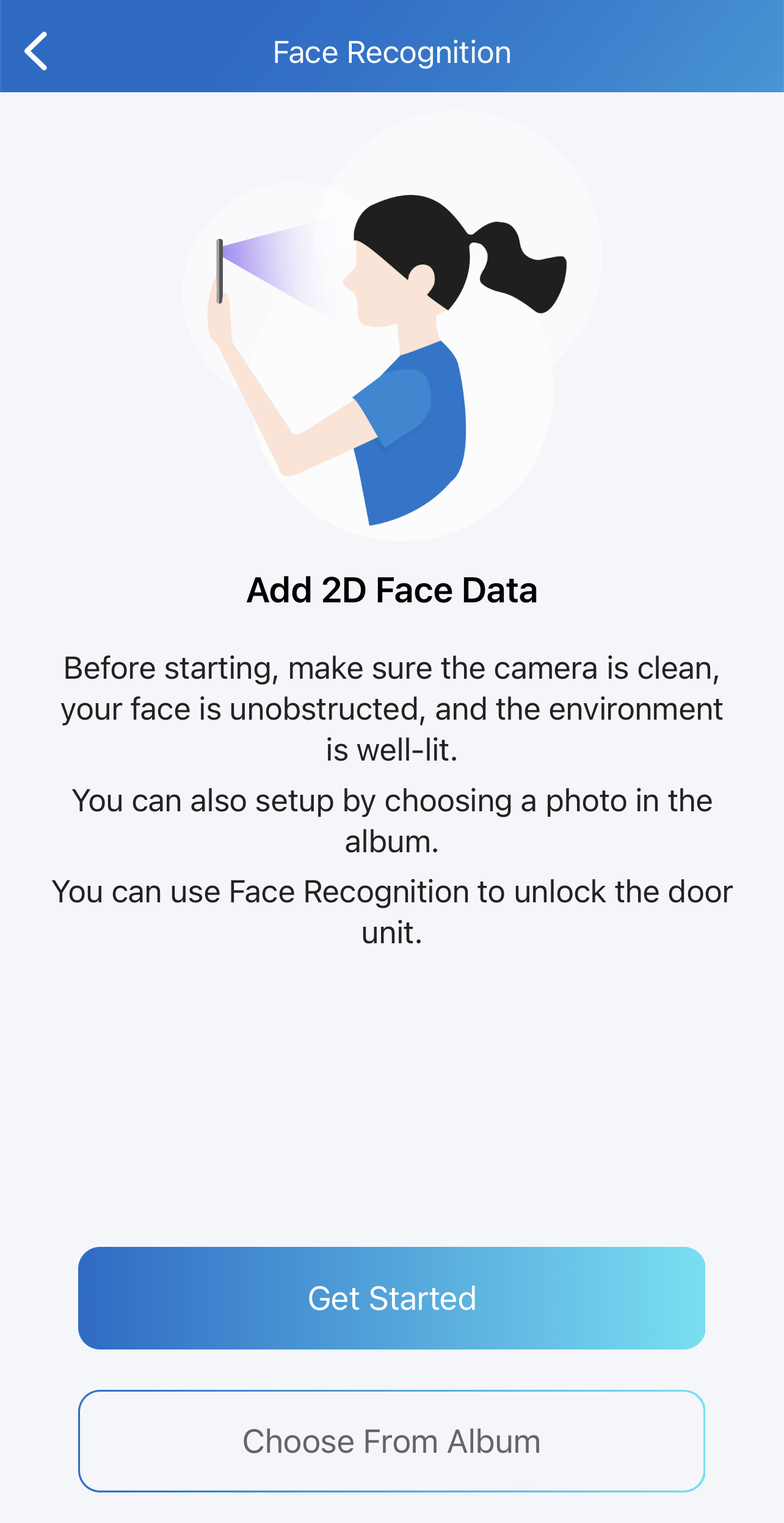
- Select "Get Started"
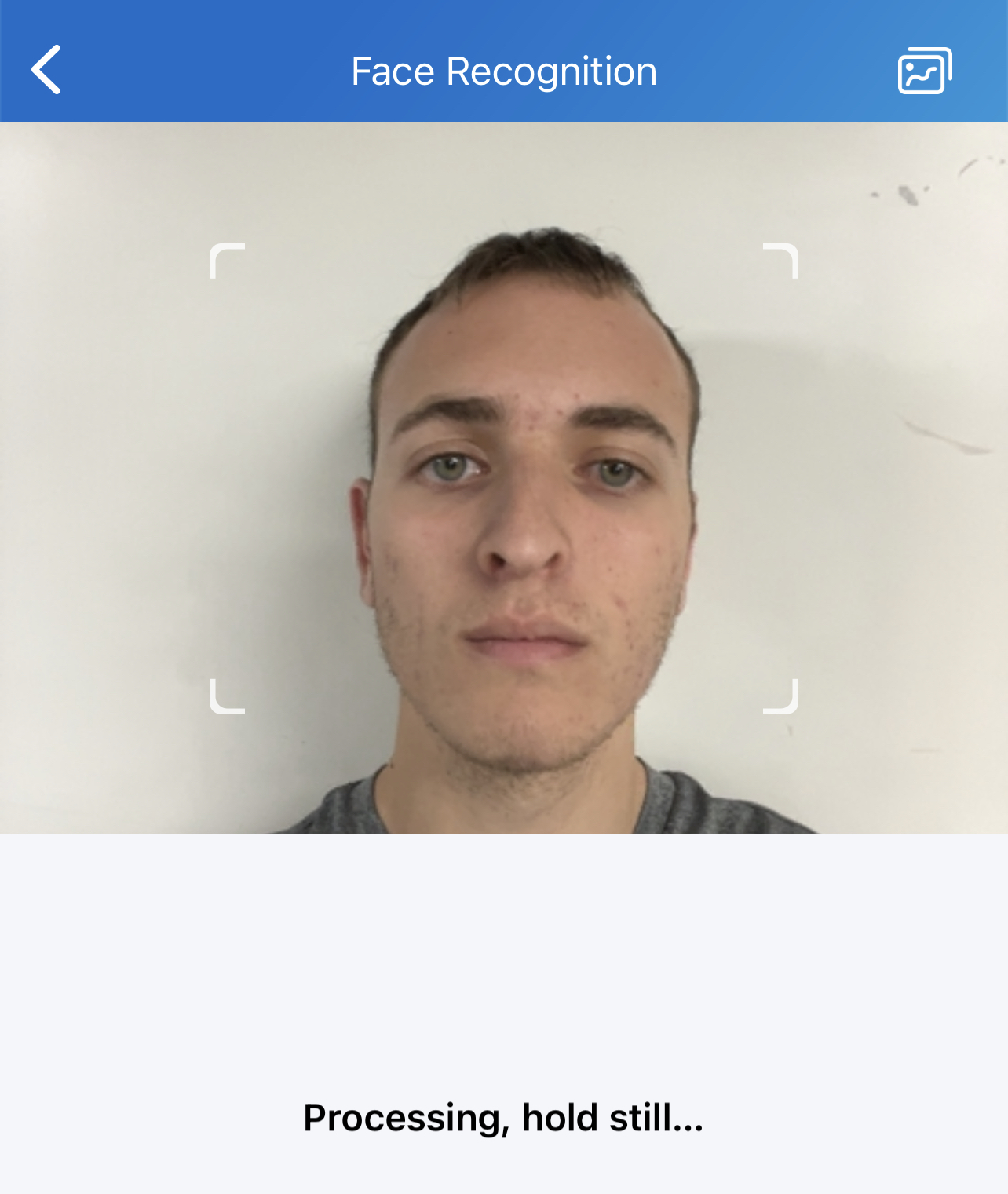
- To ensure effective use of facial ID, ensure that you are in front of a blank background during setup
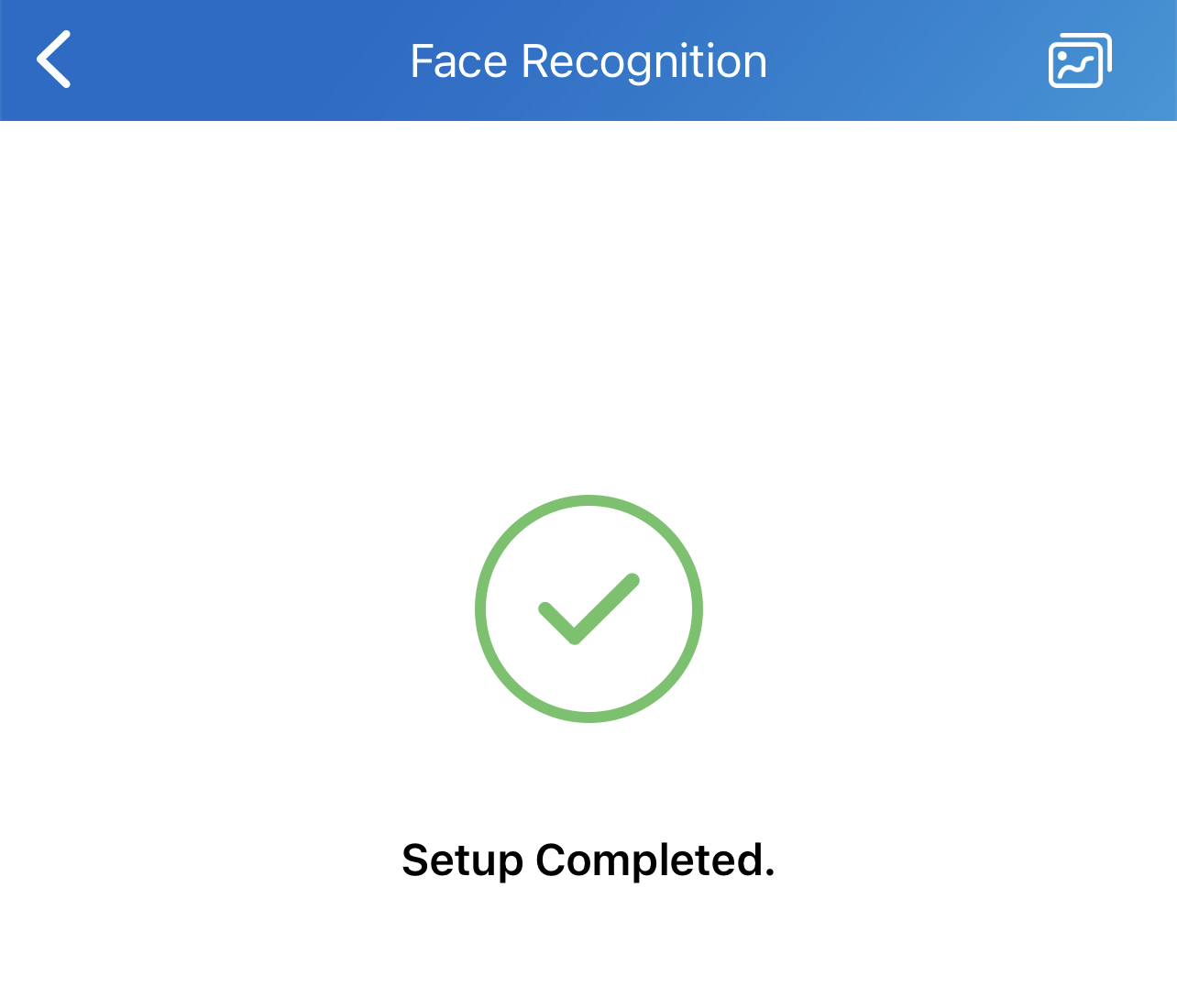
- Your face will now be active within 1-2 minutes
Temp Key Access
Creating a Temp Key
Note: Temp Keys can be used to allow access for expected deliveries, healthcare providers, visitors etc.
- Select "Temp Key"
- Select the "+" icon
- Fill out the above information to your needs
- Share your temp key by your preferred method
Using a Temp Key
- Simply select "Temp Key" on the video entry system screen and hold your QR code in front of the camera